
Open your personal monitoring account VNISH HUB and you will find miners that was added using vnish hub tool. If you see the message “not verified firmware”, you need to update the firmware to vnish hub version by clicking the “update firmware” button.

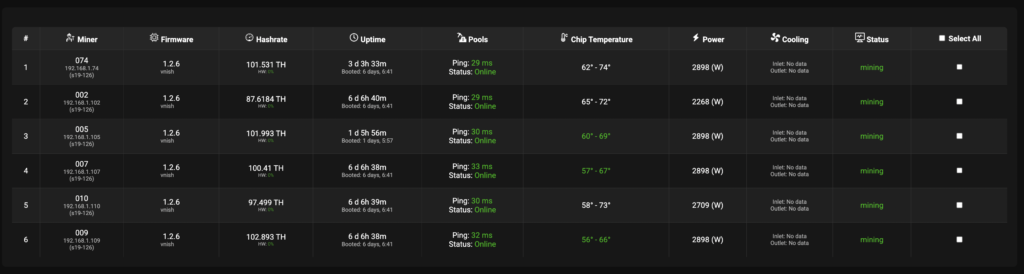 This section displays the following information : miner (sub worker, ip, model), firmware (version, build name), hashrate ( hashrate, HW errors), uptime (uptime, date of last reboot), pools ( pool ping and connection status), chip temperature(chip temperature), power (consumption), cooling(cooling status), status (status of the miner)
  To perform these actions you need to select all or part of the miners. You can select them either from the list of non-grouped miners or by location (farm).
“Power Action section – in this section you can select the control command to send to the miner (restart, pause, reboot, start, resume, find-miner, safe-pause )
Section “Schedules” – in this section you can create a schedule for running commands from the section “Power action” and “Presets” by specifying the time, date, time zone, repeat and then you need to save the action and from this section you can display a list of saved scheduled commands. For example you can create a schedule for switching the miner’s operating modes (overclocking profile) by time during the day.
Section “Stats graph” – in this section you can display a graph for miners with information about the average hash rate, temperature and consumption.
Section “Presets” – in this section you can send a command to the miner to change the operating mode (overclocking profile) and you can also set the parameters of the auto-switching function of operating modes (overclocking profile) depending on the temperature of the miner’s chips. To learn more about this feature and its configuration recommendations, follow this link.
“Change pools” section – in this section you can change pools, workers, and passwords. To do this you need to put the pool stratum, the main worker , select the option to create a sub worker miner (model, mac address, ip address of the 4th octet, a number with 1,2 leading zero -01, 001), password, and then click the “change pools” button
Section “management” – in this section, you can edit the miner (move it from one farm to another) or remove the miner from the monitoring system if you want to add it to another monitoring account. This feature only works for non -grouped miners. To remove or add miners from locations (farms), use the “miner farms” function.
“Virtual Panel section” – this section displays the miner’s virtual graphic panel with the following extended information (hashrate, chip temperature, consumption, HW errors, pools, cooling, hash board info)
Section “logs” – this section displays the logs of the miner (status, miner, auto-setup), which can be used to determine the reason for stopping mining or errors.
“Sorting section” – this section allows you to sort the display of miners by the following indicators in descending order (model, hashrate, temperature, consumption)
Section “update firmware” – this section allows you to update the firmware version to the latest version or install the previous version.
Section “network settings” – this section allows you to disable DCHP and change. If the dev fee error occurs we recommend installing dns google dns : 8.8.8.8, 8.8.4.4 You can only return to DHCP manually, by selecting in each miner.
Section “change password” – this section allows you to massively change passwords on miners, you need to enter the current and new password
To perform these actions you need to select all or part of the miners. You can select them either from the list of non-grouped miners or by location (farm).
“Power Action section – in this section you can select the control command to send to the miner (restart, pause, reboot, start, resume, find-miner, safe-pause )
Section “Schedules” – in this section you can create a schedule for running commands from the section “Power action” and “Presets” by specifying the time, date, time zone, repeat and then you need to save the action and from this section you can display a list of saved scheduled commands. For example you can create a schedule for switching the miner’s operating modes (overclocking profile) by time during the day.
Section “Stats graph” – in this section you can display a graph for miners with information about the average hash rate, temperature and consumption.
Section “Presets” – in this section you can send a command to the miner to change the operating mode (overclocking profile) and you can also set the parameters of the auto-switching function of operating modes (overclocking profile) depending on the temperature of the miner’s chips. To learn more about this feature and its configuration recommendations, follow this link.
“Change pools” section – in this section you can change pools, workers, and passwords. To do this you need to put the pool stratum, the main worker , select the option to create a sub worker miner (model, mac address, ip address of the 4th octet, a number with 1,2 leading zero -01, 001), password, and then click the “change pools” button
Section “management” – in this section, you can edit the miner (move it from one farm to another) or remove the miner from the monitoring system if you want to add it to another monitoring account. This feature only works for non -grouped miners. To remove or add miners from locations (farms), use the “miner farms” function.
“Virtual Panel section” – this section displays the miner’s virtual graphic panel with the following extended information (hashrate, chip temperature, consumption, HW errors, pools, cooling, hash board info)
Section “logs” – this section displays the logs of the miner (status, miner, auto-setup), which can be used to determine the reason for stopping mining or errors.
“Sorting section” – this section allows you to sort the display of miners by the following indicators in descending order (model, hashrate, temperature, consumption)
Section “update firmware” – this section allows you to update the firmware version to the latest version or install the previous version.
Section “network settings” – this section allows you to disable DCHP and change. If the dev fee error occurs we recommend installing dns google dns : 8.8.8.8, 8.8.4.4 You can only return to DHCP manually, by selecting in each miner.
Section “change password” – this section allows you to massively change passwords on miners, you need to enter the current and new password