Steps to Install Vnish Firmware using Hashcore Toolkit
- Download and open the Toolkit software.
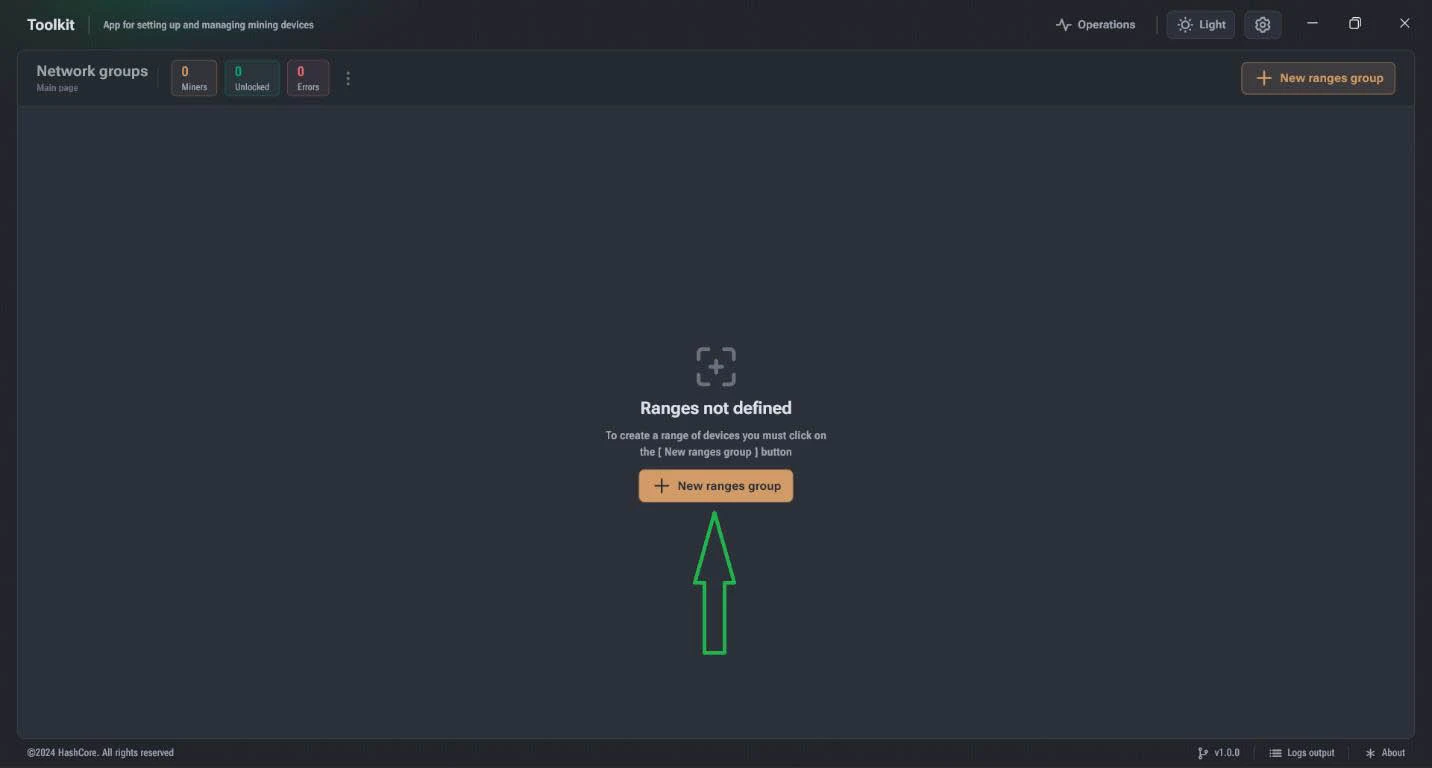
- Click on “New ranges group” button.
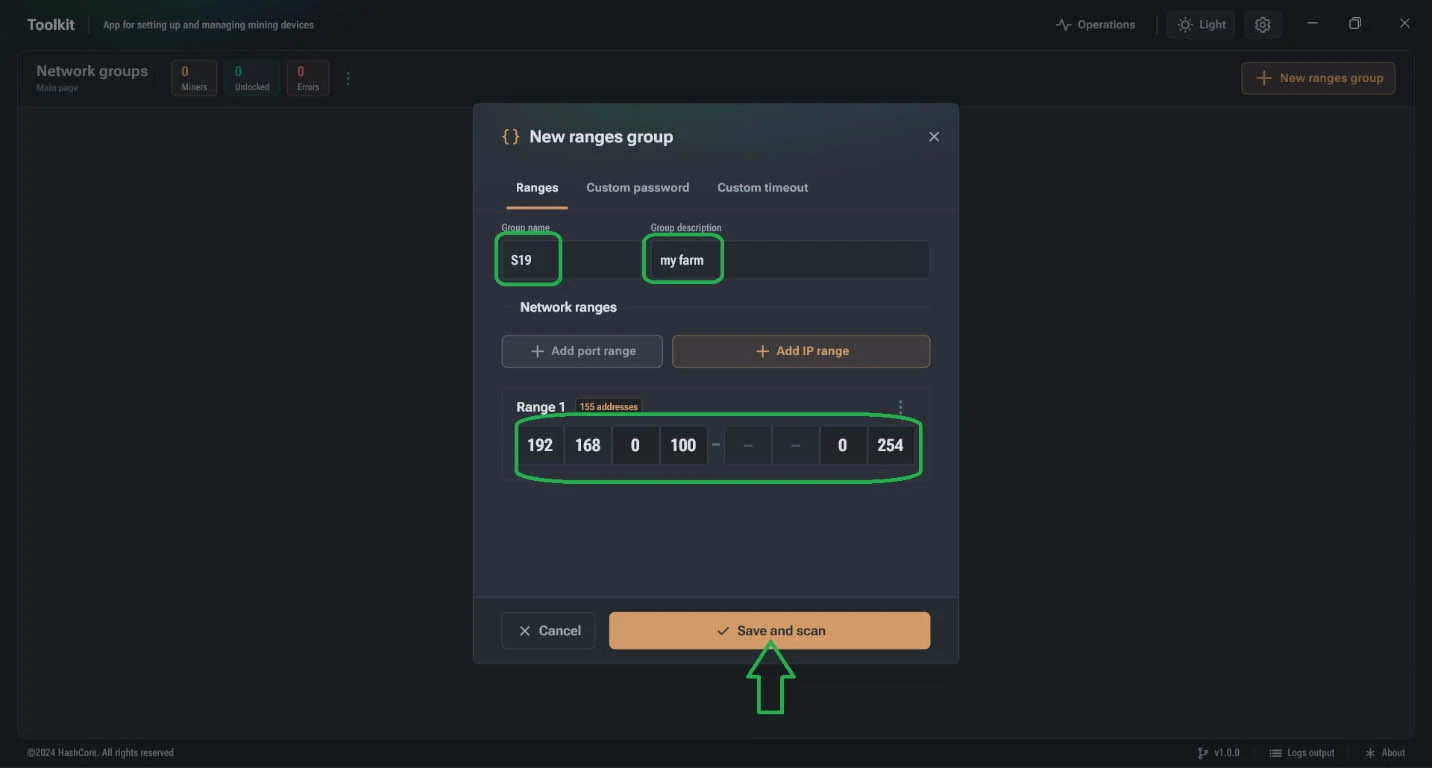
- Create a group for the IP range:
- Enter a name in the “Group Name” box.
- Add a description in the “Group description” box.
- Choose your IP range in the range box.
- If you changed the default password (root), click on “Custom password” tab and enable “Custom password for unlock device”.
- Scroll down and enable “Bitmain Firmware”. Click on the dropdown menu to view the password. Enter your miner’s password in the password box.
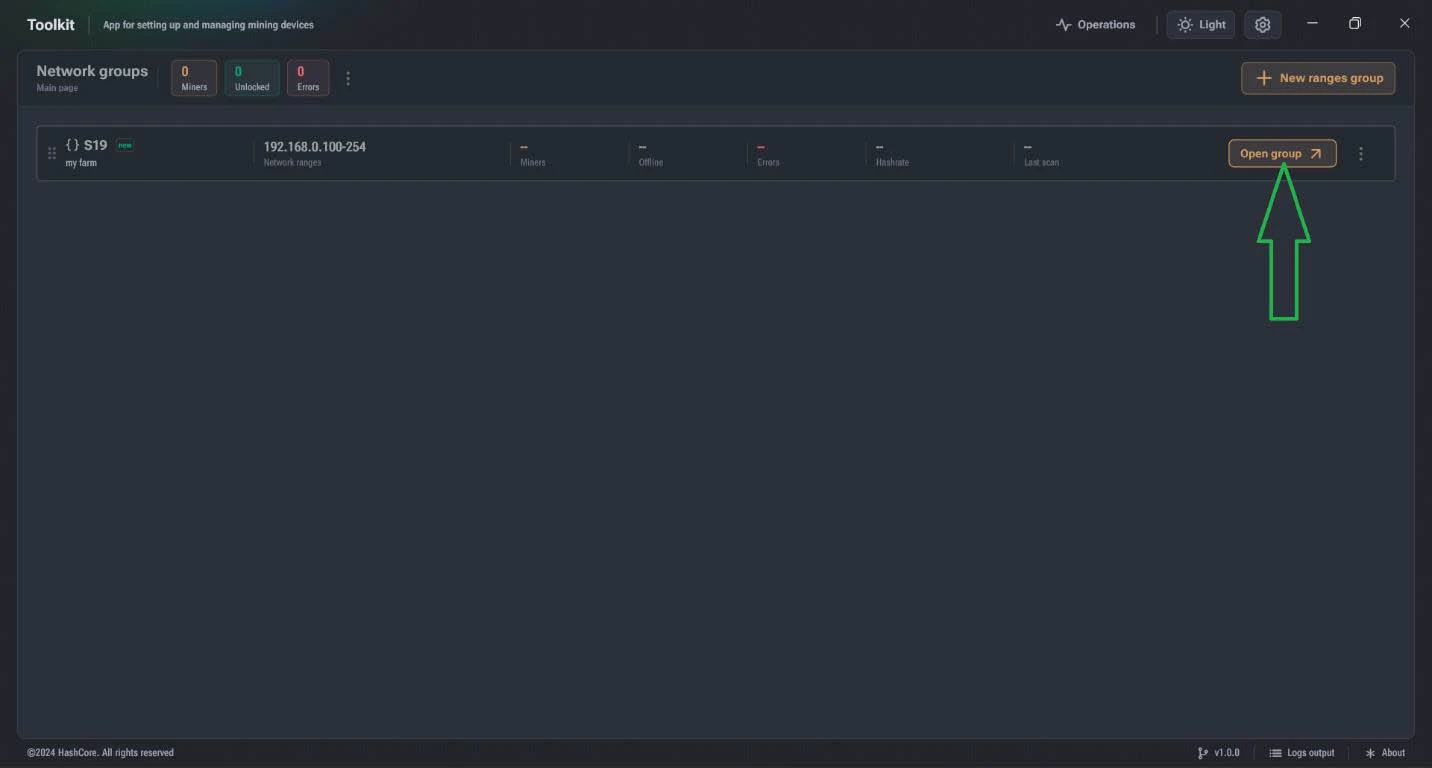
- Click “Save and Scan”.
- Click “Open Group” to see the miners in the IP range.
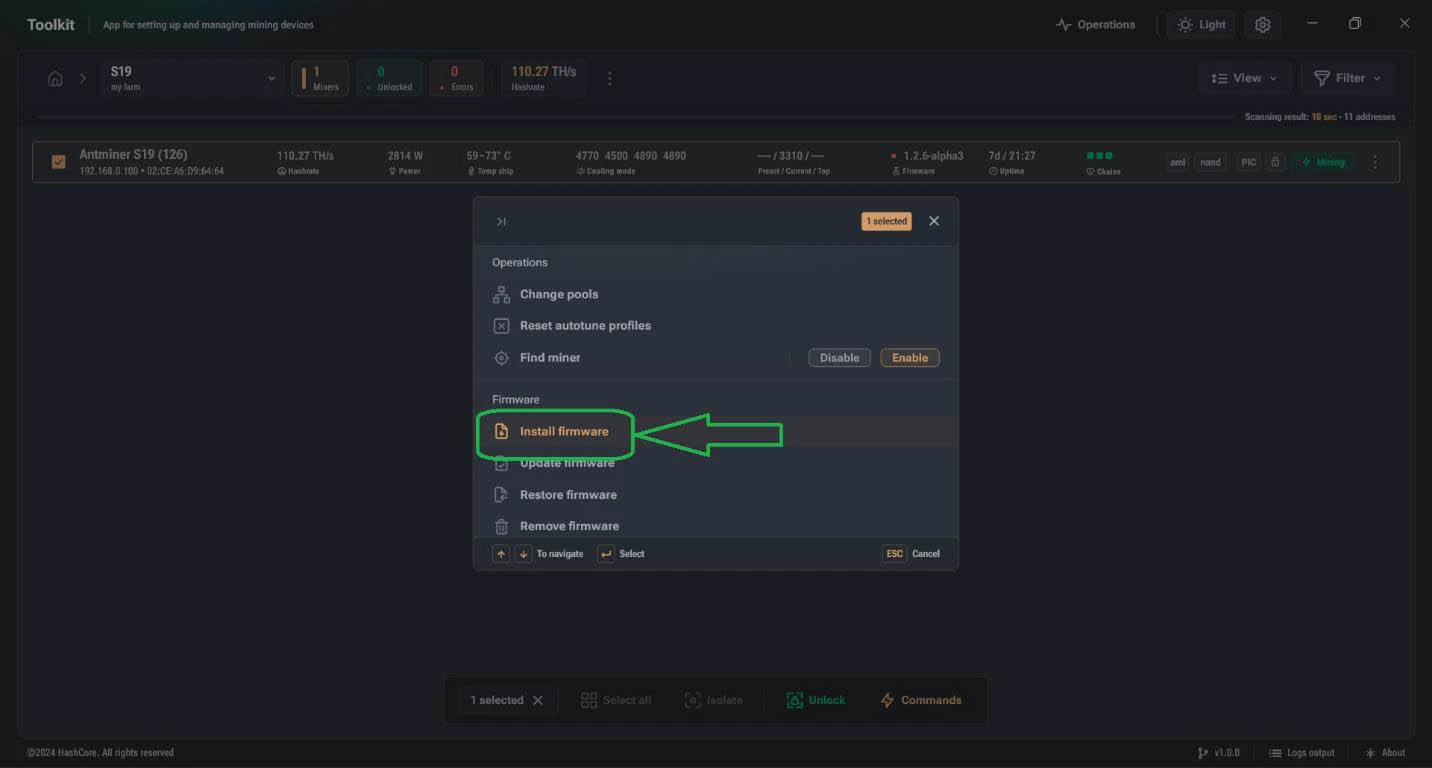
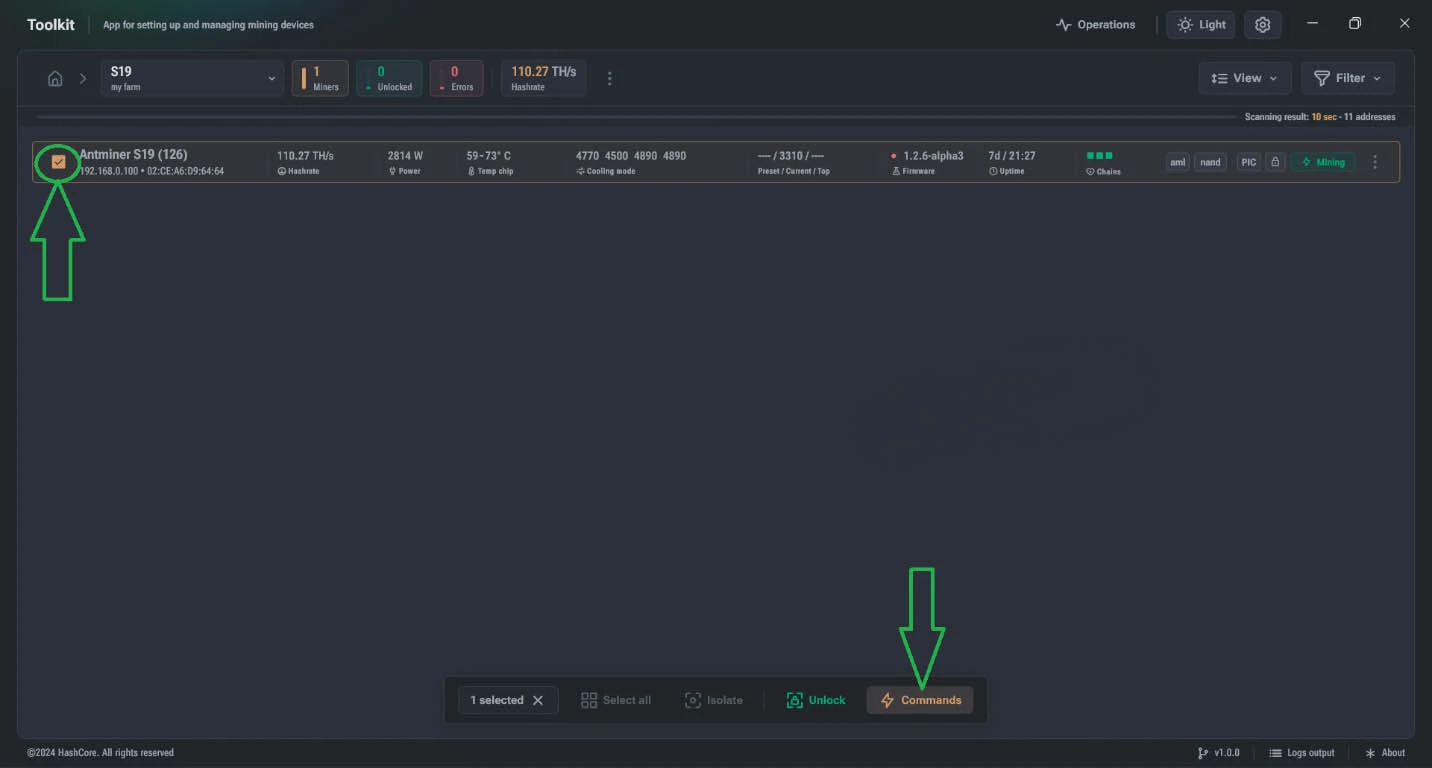
- Select the miner on which you want to install Vnish firmware and click “Commands” button.
- On the Commands page, click “Install Firmware” button.
- When the Install page appears, click on “Select” to choose the folder where the firmware files are stored.
- Make sure to download the NAND install firmware files for your model in advance and place them in a folder.
- The firmware files will not be visible when selecting folders, which is normal, the firmware files are inside (DO NOT UNPACK THE ARCHIVE WITH THE FIRMWARE!).
- Fill in the information as shown below:
(with example file name: vnishus-t21-aml-nand-v1.2.7-install.tar.gz)
- Firmware Name: vnishus
- Firmware Version: 1.2.7
- In the “Operations” section, you can monitor the installation process. If an error occurs, the error details will be displayed.



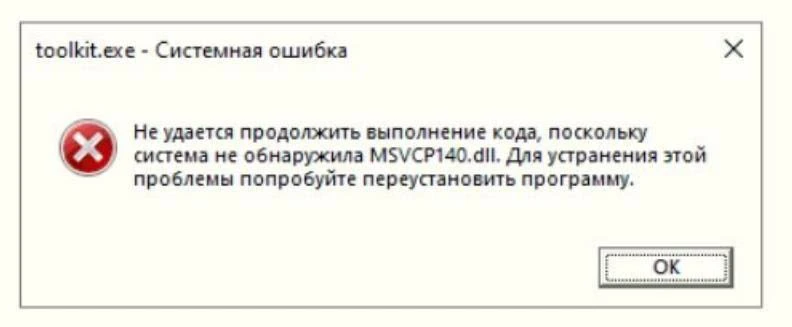
 Note: If a library availability error occurs when opening the Toolkit:
You must install the latest supported versions of the Visual C++ Redistributable component:
Download Visual C++ Redistributable
Note: If a library availability error occurs when opening the Toolkit:
You must install the latest supported versions of the Visual C++ Redistributable component:
Download Visual C++ Redistributable